
Notebook setup
Build a Born Free research notebook
Use Google's NotebookLM to explore the Born Free disease model and protocol through source-grounded questions.
Open NotebookLM-
Open NotebookLM
Visit notebooklm.google.com and sign in with your Google account, or create one if prompted.
-
Create a notebook and add the Born Free source
Select + New Notebook. When asked to add a source, choose Website under Link, insert the address below, then select Insert.
Source URLbornfree.life/learn/notebooklm-data/This special page compiles the website's content for NotebookLM and is not intended for ordinary browsing.
-
Name the notebook
Select Untitled notebook in the title bar and rename it Born Free, or use another memorable name.
-
Prime and verify the context
NotebookLM can occasionally miss tables or make mistakes. Begin by asking:
Can you read all of the tables in the protocol page?
It should confirm that it can. Save the response as a note using the pin button, then verify the context with:
What stage of the protocol are bacteriophages used?
The answer should include information about Stage 2.
Ready
Start asking source-grounded questions
You can tell NotebookLM your level of science education and ask it to interpret the material for that audience.
For onboarding decisions, use the Protocol Helper Wizard rather than relying on LLM support alone.
Example uses
Ways to use your notebook
Explore the model
Ask general or detailed questions about the disease model and how its components connect.
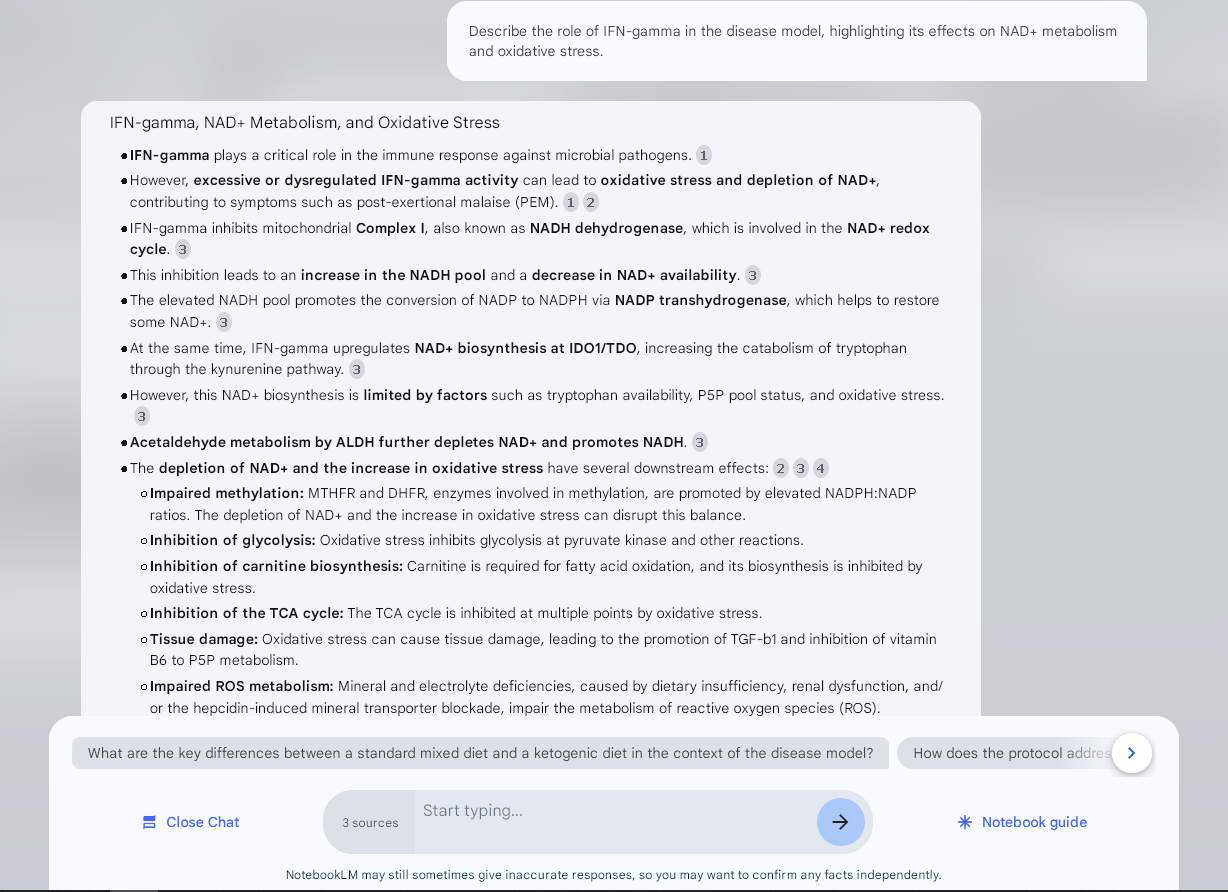
Highly experimental
Upload test results for AI interpretation
Add the test results as a PDF source. Where possible, first run reports through the relevant data-translation tools on this website.
1Select + in NotebookLM's upper-left source pane.
2Select Choose file and add one or more PDF reports.
- If a long request fails, repeat it once. If it continues to fail, divide the task into smaller prompts or create a fresh notebook.
- Use the copy button below a NotebookLM response to move results into a spreadsheet for further analysis.
- For follow-up data or a different person, create a new notebook so earlier data does not confound the result, even if removed.
Prompt library
Test-specific starting prompts
Replace "filename.pdf" with the exact source filename. Treat every output as a draft to verify against the report and source material.
Translated Oligoscan results
Add the translated PDF produced by the Oligoscan PDF Processor.
Check the source carefully: NotebookLM may hallucinate individual markers.
Summarise the Oligoscan results and interpret them against the disease model.
Cellular Micronutrient Assay
Add the CMA PDF as a source and use the prompt below.
Work in progress: currently limited to markers that include text such as "112% deficiency". An automated workflow is planned.
In CMA report, "filename.pdf", please interpret the markers (Biotin, Delta tocotrienol, MK4, MK7, Pantothenic acid, Vitamin A, Vitamin B1, Vitamin B2, Vitamin B3, Vitamin B6, Vitamin B9, Vitamin B12, Vitamin C, Vitamin D, Vitamin K1, Boron, Calcium, Chromium, Copper, Iodine, Iron, Lithium, Magnesium, Manganese, Molybdenum, Selenium, Strontium, Vanadium, Zinc, Arginine, Asparagine, Cysteine, Glycine, Histidine, Isoleucine, Leucine, L-Glutamine, L-Serine, L-Tyrosine, Lysine, Methionine, Phenylalanine, Taurine, Threonine, Tryptophan, Valine, Carnitine, Choline, Coenzyme Q10, Glutathione, Inositol, Lipoic Acid, Omega 3 DHA, Omega 3 EPA, Omega 9) against the protocol and model. Output as a table. Do not truncate long tables.
Microbiome report data
Add one or more PDF reports, then work through the three prompts below in order.
Question 1
Any results reported as "Not listed" are likely hallucinated.
Let's refer to "filename.pdf" as "PDF data", which is a microbiome test report. Please detail ALL species in "PDF data" which match species in the "Fermenting species identification table". Also include records in "PDF data" that are known to produce alcohol and/or acetaldehyde. Output ONLY the matching results, including their abundance, as a table. Ensure accurate results. Do not truncate long tables.
Question 2
Provide additional context for each species, where possible, also identifying any (opportunistic) pathogens.
Question 3
Interpret results against the protocol and disease model.
Organic Acids Test data
Run the original report through the OAT Wizard, export the translated PDF, and add it as a source.
Please interpret the OAT test data "filename.pdf" against the model and ignore any interpretations or suggestions included with the test results. Output as a table. Do not truncate long tables.
Blood test results
Add one or more PDF reports and use the starting prompt below.
Please interpret the blood test results, "filename.pdf", against the model and protocol. Ignore any interpretation or suggestions included with the test results. Output as a table. Do not truncate long tables.